
Live Defence
Bring your TikTok LIVE into the battle
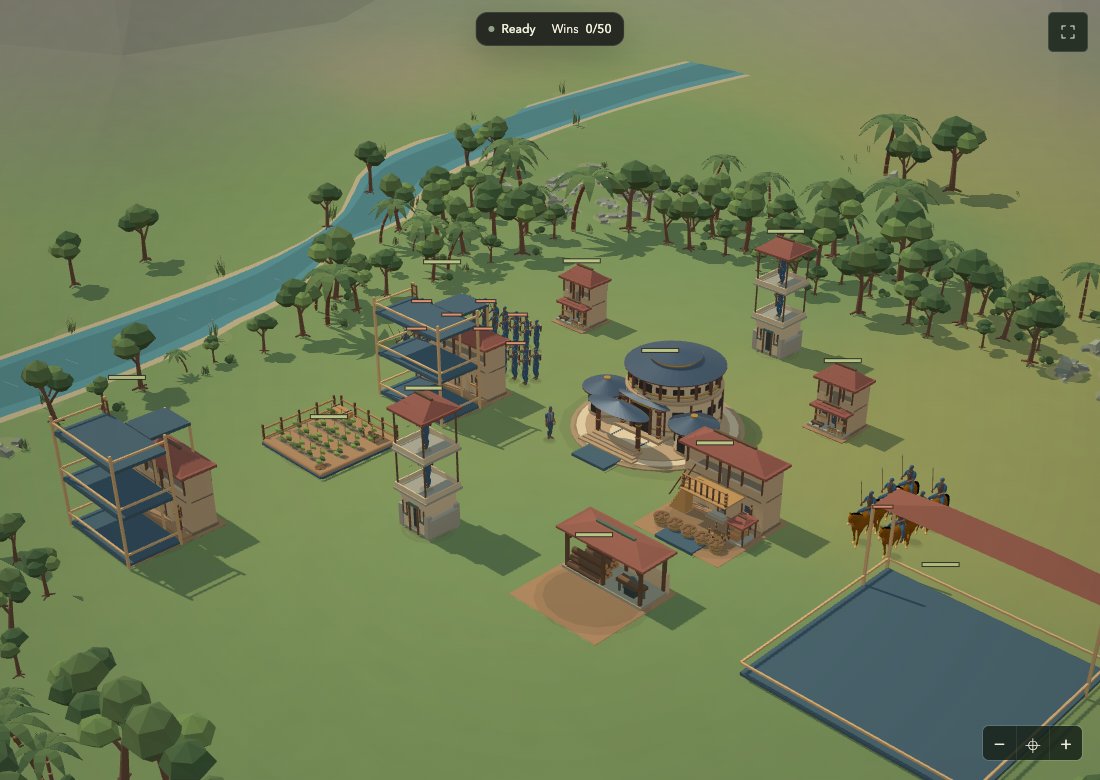
Rebuild your settlement, train defenders and protect your Palace while viewer-triggered attacks arrive through TikFinity. Try a ready-made base without an account.
How it works
-
Start in ruins
Each attempt starts with a ruined copy of your chosen base.
-
Repair and train
Repair buildings and rebuild your defending army.
-
Viewers attack
Gifts received through TikFinity trigger mapped attacks.
-
Hold for ten seconds
Restore your base and army, then clear all attackers.
-
Win and repeat
Earn a session win. A new attempt starts automatically.
What you’ll need
- A computer compatible with TikFinity Desktop.
- TikTok LIVE access and a supported broadcasting setup.
- TikFinity Desktop running on the game computer.
- No game account needed to start or test with the ready-made base.
Progress lasts for this session. Refreshing resets the base and wins. Your saved empire is unchanged. Only gift rules and connection preferences are kept.
Set up Live Defence
-
Open the ready-made base
Open Live Defence in another tab. The ready-made base includes a Palace, military buildings, workers, supplies and a defending army target. No registration or saved base is needed.
-
Choose your base
Choose Quick start. The base layout varies between sessions. Use Change base under Advanced settings after stopping the round.
Sign in on the start panel is optional. It requires an account with a saved Palace, military buildings and troops at home. Sign in to the main game in the same browser profile, then select this option to load a separate copy.
-
Connect TikFinity Desktop
Open TikFinity Desktop on this computer and connect to your intended LIVE room. In Live Defence, open the Connect tab in Settings and press Connect.
The game receives gift events over a local WebSocket connection. Allow local connections if your browser asks.
Check the room in TikFinity even when connected. Map gifts in Live Defence; no per-gift TikFinity actions are needed.
TikFinity connection help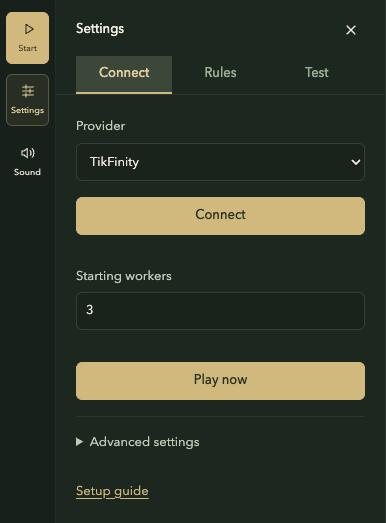
-
Start and rehearse
After setup, select Play now. To rehearse offline, leave TikFinity disconnected.
Select a building and choose Repair. Use repaired military buildings to train defenders.
Open the Test tab in Settings and press Test beside a rule to rehearse an attack.
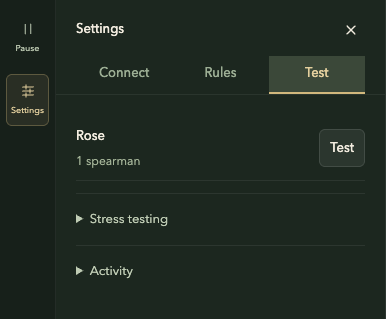
Rehearse attacks without connecting TikFinity. -
Map gifts to attacks
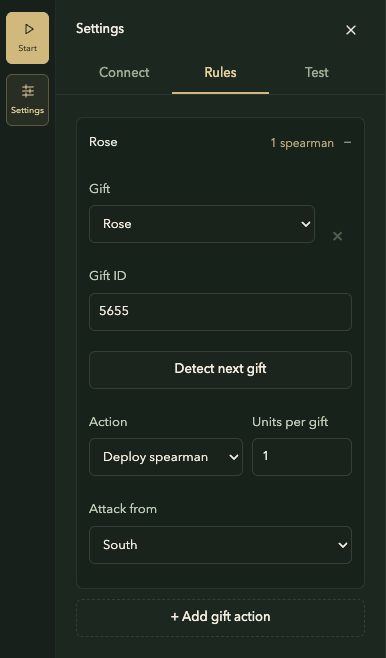
Rose is already mapped to one spearman. In Rules, expand a rule and choose its Gift, Action, Units per gift and Attack from direction.
Use + Add gift action for another gift. Detect next gift captures gifts outside the list when they arrive in your LIVE room. For Other gift, you can enter its name and ID directly.
Use Test, then confirm a real gift triggers an attack during an active attempt.
-
Capture the game window
Capture the visible browser window in LIVE Studio or OBS. Check that the battlefield is readable in your broadcast preview.
Keep the game tab visible while streaming. Hiding it pauses the attempt.
Troubleshooting
- Your empire not loading?
- Choose Quick start to use a ready-made base. For your own empire, sign in to the main game in the same browser profile and select Try again.
- No connection?
-
Check that TikFinity Desktop is running. Allow local connections in your browser. The
default address is
ws://localhost:21213/; check the port in Advanced settings. - No attacks?
- Check the LIVE room, selected gift and that an attempt is active. Use Test to check the rule.
- Game paused?
- Return to the game tab and press Resume.